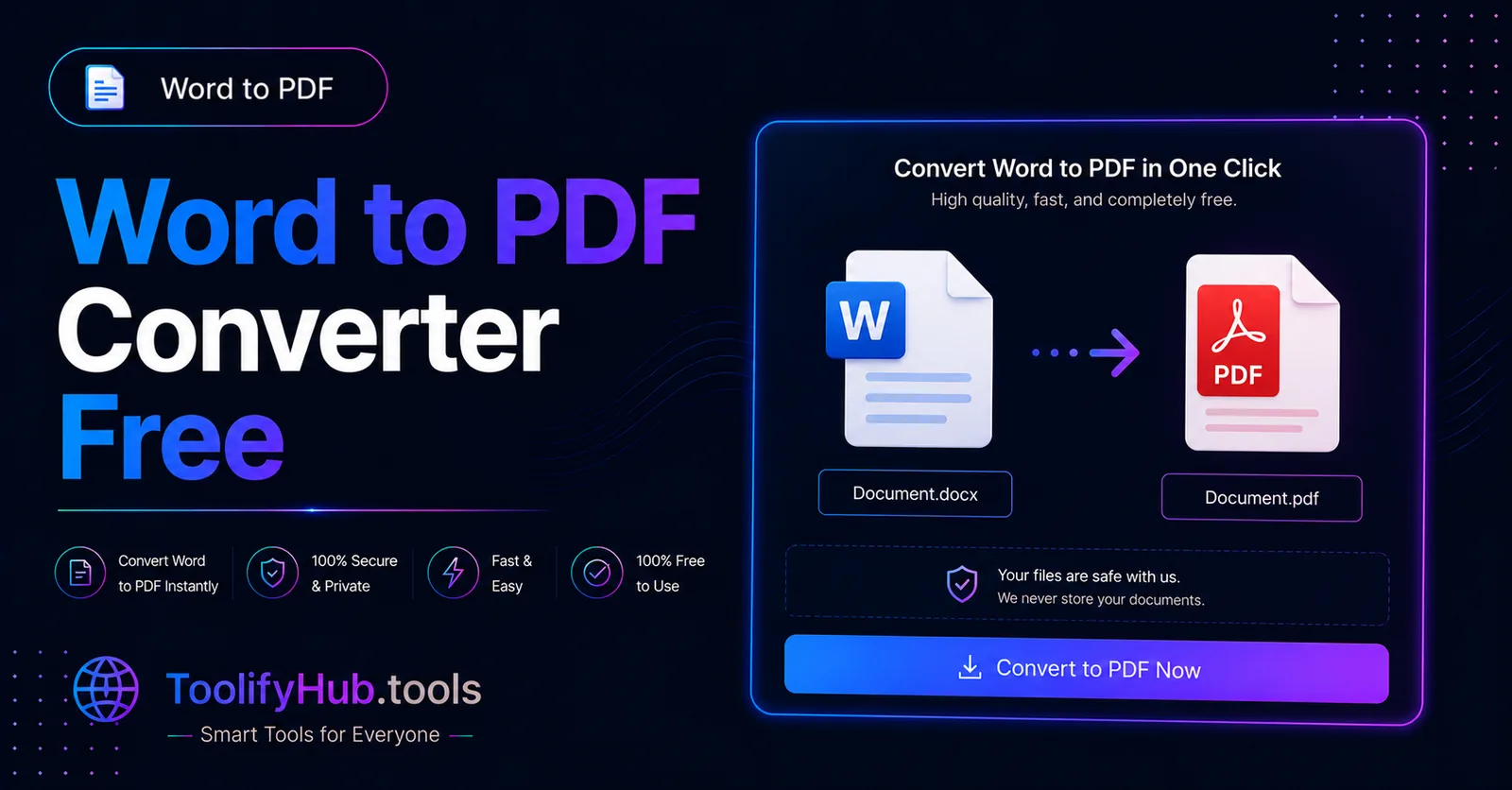
Why You Actually Need a Word to PDF Converter
Convert Word documents to PDF instantly with our free online Word to PDF converter. Transform DOCX and DOC files into high-quality PDFs that look the same on any device. Perfect for sharing documents, creating print-ready files, or converting editable documents to a universal format that preserves formatting across all platforms.
PDF is the universal document format because it preserves formatting, fonts, and layout regardless of the device or software used to open it. This converter maintains your document's original appearance including margins, headers, footers, images, tables, and special formatting. Whether you are converting a resume, report, thesis, or business proposal, the resulting PDF looks professional and prints correctly. The tool handles complex documents with multiple sections, tables of contents, and embedded images while maintaining fast conversion speeds.
Why Use ToolifyHub.tools?
Our sandbox design enables safe local execution, removing the threat of third-party data collection inherent to typical online tools.
🔒 100% Privacy-First Sandbox
This tool runs entirely inside your browser. No files or inputs are sent to any external server.
❌ No Sign-Up or Accounts
Enjoy instant, anonymous access to all features without sharing email or credentials.
⚡ High-Speed Local Rendering
Optimized client-side rendering ensures near-zero processing wait times.
🎁 Free Forever with Zero Caps
Supported exclusively by simple display advertisements, keeping premium tools accessible to everyone.
How to Use the Word to PDF Converter on ToolifyHub.tools
- 1
Select & Upload Your Word File
Click the upload dropzone or drag your Word file into the browser window. The file must be unencrypted and under 20MB.
- 2
Document Parsing & Font Mapping
The conversion engine reads the file's XML structure, mapping paragraph styles, table cell bounds, and embedded graphics into PDF primitives.
- 3
Initiate PDF Generation
Click the 'Convert to PDF Now' button to execute the conversion stream.
- 4
Verify File Preview Metadata
Check the Live File Information Card to verify that the file name and converted size match your expectations.
- 5
Download Converted PDF
Save your freshly generated PDF document to your local storage ready to email, print, or archive.
Real-World Scenarios Where This Saves You
Submitting Resume & Job Applications
A job applicant finishes updating their resume in Microsoft Word. If sent as a Word file, the hiring manager's computer might substitute missing fonts or shift line breaks. Converting it to PDF guarantees the layout looks immaculate on every recruiter's screen.
Sending Business Proposals & Client Contracts
A freelancer or business consultant prepares a project quotation in Word. Converting it to PDF prevents accidental editing of pricing figures by recipients while presenting a professional corporate document.
Submitting Academic Research Papers
Students and researchers writing theses with complex figures, tables, and mathematical equations convert their final Word drafts to PDF before submitting to university portals to protect pagination.
Common Mistakes to Avoid
How We Tested This Tool
To guarantee complete accuracy and reliability, our engineering and QA team validates the Word to PDF Converter regularly against:
- Cross-Browser Compatibility: Verified on standard releases of Google Chrome, Apple Safari, Mozilla Firefox, and Microsoft Edge.
- Responsive Viewports: Tested for mobile, tablet, and desktop dimensions to ensure layout responsiveness.
- Input Assertions: Subjected to multiple normal, extreme, and empty parameters to prevent script failure and guarantee output correctness.
Local Browser Sandbox vs. Cloud Tools
| Metric | ToolifyHub Sandbox | Typical Cloud Services |
|---|---|---|
| File Upload Risks | None (0% upload rate) | High (transmits data to remote servers) |
| Execution Cost | Free forever (No limits) | Subscription-gated or limits applied |
| Data Retention Policy | Immediate deletion on page close | Retained in cloud buckets or server logs |
| Processing Latency | Sub-second client execution | Network upload & queuing delays |