Client-Side PDF Processing Explained: How Browser-Based PDF Tools Work Without Uploading Your Files
Executive Summary & Reference Guide
Master PDF document optimization, compression methods, and format conversions locally. This guide details how to reduce file sizes up to 80% using browser-based compression without exposing sensitive documents to third-party databases.
Introduction
Most online PDF tools follow the same workflow: you choose a file, it uploads to a remote server, the service processes it, and you download the result. That model works, but it raises a simple question: does the PDF need to leave your device at all?
For routine tasks such as merging two reports, rotating pages, or removing a single slide, the answer is increasingly no. Modern browsers can read PDF files, manipulate them in memory, and return a new file — all without uploading bytes to a server. This article explains how that architecture works, what technologies make it possible, where the real limitations are, and why "client-side" should be verified rather than assumed.
What Does Client-Side PDF Processing Actually Mean?
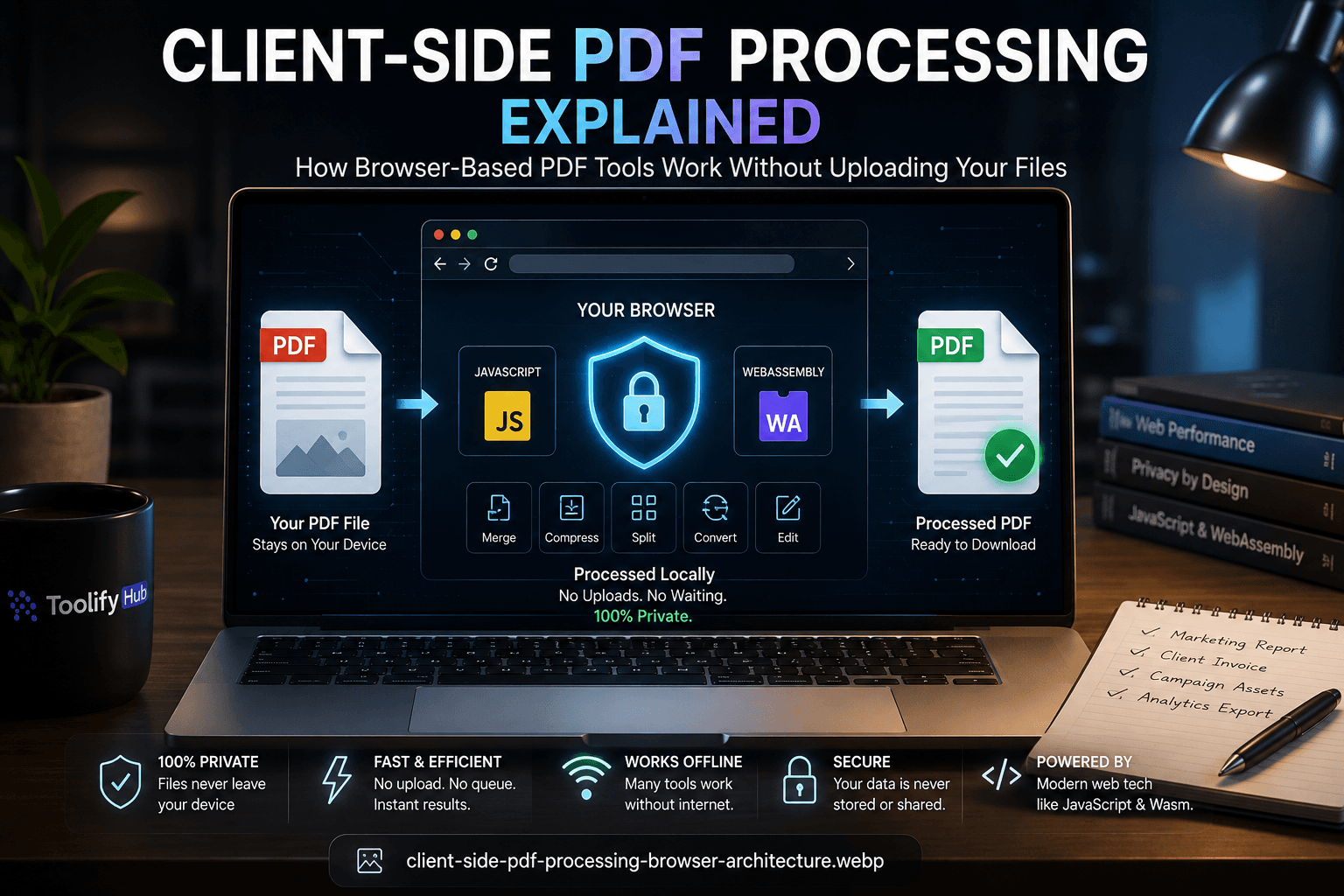
Client-side processing means the computation happens on the user's device, not on a remote server controlled by the tool provider. In practice, this changes the data path from:
Upload → Remote server → Processing → Download
to:
File selection → Browser memory → Local processing → Download
The distinction matters for three reasons: privacy, latency, and offline capability. When processing stays local, the file never crosses a network boundary. There is no upload queue, no server retention policy, and no third-party access during the operation. The trade-off is that the user's device must supply enough memory and CPU to complete the job.
Server-side processing is not inherently insecure, but it does transfer custody of the file. Whether that matters depends on the document: an NDA-protected client report, an unpublished product roadmap, or a customer data export may warrant stricter controls than a public marketing one-pager. The architecture should match the sensitivity of the content.
What Happens When You Select a PDF in Your Browser
When a user selects a PDF through an HTML file input, the browser exposes the file as a File object. That object is a specialized Blob — an immutable binary container with a filename, MIME type, size, and last-modified timestamp. From there, the typical flow is:
- Read the file into binary memory with
file.arrayBuffer()orfile.stream(). - Pass the bytes to a processing engine running in the browser.
- The engine manipulates the PDF structure — adding, removing, or rewriting pages.
- The result is wrapped in a new
Blobwithtype: "application/pdf". - The browser downloads the blob through a temporary object URL.
A minimal example of the read-and-output pattern looks like this:
const file = input.files[0];
const buffer = await file.arrayBuffer();
// ... processing happens here ...
const resultBlob = new Blob([processedBytes], { type: "application/pdf" });
const url = URL.createObjectURL(resultBlob);
const a = document.createElement("a");
a.href = url;
a.download = "result.pdf";
a.click();
URL.revokeObjectURL(url);
This pattern keeps the file inside the browser tab. No form submission, no fetch() with a file body, no multipart upload. That does not automatically mean the entire application is private — analytics, error logging, and CDN fetches may still occur — but the PDF bytes themselves do not need to leave the device for the core operation.
Why WebAssembly Changed Browser-Based PDF Processing
PDF manipulation is computationally intensive. A PDF is not just a document; it is a graph of objects, streams, cross-reference tables, and embedded resources. Parsing, rewriting, and re-serializing that structure in pure JavaScript is possible but slower than compiled code.
WebAssembly changes the performance floor. Wasm allows C, C++, and Rust code to run inside the browser at near-native speed. PDF libraries compiled to Wasm can parse binary structures, decompress streams, and rebuild document trees faster than equivalent JavaScript implementations. This matters most for larger files and complex operations such as page reconstruction, font subsetting, or image recompression.
WebAssembly does not remove browser limitations. The file still lives in device RAM. The tab still competes for memory with other applications. The operation still pauses if the device is under memory pressure. What Wasm does is make the local execution path fast enough that many users cannot distinguish it from a native application.
For demanding tasks, developers often pair Wasm with Web Workers. Workers move heavy computation off the main thread, keeping the UI responsive during processing. The architecture looks like: main thread handles file selection and download; a worker handles parsing and manipulation; the result transfers back to the main thread for download.
Does Client-Side Processing Really Keep Your PDF Private?
The honest answer is: it can, but only if the implementation actually processes locally.
A genuinely client-side tool does not upload the file. The PDF enters the browser, stays in memory during processing, and the result downloads back to the user. There is no server-side copy, no automatic cloud backup, and no processing queue visible to the provider. That architecture is materially different from a cloud tool that accepts uploads.
However, "client-side" should be verified, not trusted from marketing copy. Users who care about privacy can check this themselves:
- Open browser DevTools.
- Go to the Network tab.
- Select a PDF in the tool.
- Look for
POSTorPUTrequests withmultipart/form-dataorContent-Type: application/pdf. - Inspect request payloads for file bytes.
If no file upload request appears, the tool is likely processing locally. If an upload happens immediately after selection, the file is leaving the browser regardless of what the page claims.
One caveat: analytics scripts, CDN resources, and error trackers may still send metadata — page names, timing data, error messages. That is different from uploading the PDF itself, but privacy-conscious users should still review the overall request pattern if the workflow is sensitive.
Client-Side vs Server-Side PDF Processing
| Factor | Client-Side | Server-Side |
|---|---|---|
| File upload | Usually unnecessary | Usually required |
| Privacy | Stronger when truly local | Depends on provider policy |
| Large files | Browser memory limited | Scalable infrastructure |
| Processing power | User device | Server cluster |
| Offline capability | Possible | Usually unavailable |
| Advanced conversion | Limited by browser ecosystem | Often stronger |
| Batch processing | Manual, tab-by-tab | Easier to automate |
| Infrastructure cost | Lower backend requirement | Requires servers and ops |
| Reliability | Depends on device and browser | Depends on service uptime |
| Enterprise workflows | Often limited | Often stronger |
Neither column is universally better. Client-side tools excel at privacy-sensitive, lightweight, one-off tasks. Server-side tools excel at heavy lifting, batch automation, and complex conversions that require specialized infrastructure. The right choice depends on file size, task complexity, privacy requirements, and workflow context.
The Biggest Limitation: Browser Memory
Browser memory is the hardest constraint in client-side PDF processing. A 5 MB PDF is not cheap to process. When a browser parses a PDF, it expands compressed streams, decodes images, builds object graphs, and allocates cross-reference tables. The in-memory footprint can easily exceed the file size — sometimes by a factor of five or more for image-heavy documents.
A typical agency workflow illustrates the risk: a 10 MB scanned report with embedded images, vector graphics, and custom fonts may consume 50 MB or more of browser memory during processing. If the user has multiple tabs open, or if the device has limited RAM, the operation can slow down or fail entirely. There is no warning dialog that says "your PDF is too large for this browser tab." The operation simply stalls or crashes.
Developers can mitigate this with chunked processing, streaming APIs, and Web Workers, but the fundamental ceiling remains: the browser tab is a sandbox with finite resources. For occasional small files, that ceiling is invisible. For large or complex documents, it becomes the defining constraint.
Why Some PDF Operations Are Easy in a Browser — and Others Are Hard
Not all PDF tasks are equally difficult to run locally. The distinction comes down to whether the operation requires reconstructing document structure or merely rearranging existing objects.
Relatively browser-friendly operations include merging, splitting, rotating, deleting pages, reordering, basic metadata changes, and simple compression. These tasks treat the PDF as a container of objects. Adding a page to an existing file, removing a bookmark, or rewriting the document catalog does not require interpreting the document's visual layout.
More demanding operations include high-fidelity PDF-to-Word conversion, complex OCR, scanned-document reconstruction, large batch processing, and advanced font or layout preservation. These tasks require the engine to guess the author's intended structure: reading order across columns, table boundaries, heading hierarchies, and footnote placement. That interpretation is inherently lossy because the PDF format does not store those relationships explicitly.
The practical consequence is that a browser-based merge tool can match desktop software quality, while a browser-based PDF-to-Word converter may struggle with documents that desktop engines handle more reliably. The difference is not a flaw in browser technology; it is a reflection of how different PDF operations map to the format's underlying data model.
PDF to Word Is a Different Problem
PDF was designed to preserve visual placement. Every text block, image, and vector shape is positioned by coordinates. There is no inherent concept of paragraphs, headings, table cells, or reading order. A converter that turns PDF into Word must reconstruct those semantic relationships from positional data alone.
When a PDF was exported from Microsoft Word or Google Docs, the converter can sometimes recover structure because the original application embedded fonts, styles, and object tags. When a PDF was created by scanning, printed, or generated programmatically, the text may be positioned as independent glyphs with no grouping. The converter must infer columns, rows, and paragraphs from proximity and alignment heuristics.
That is why PDF-to-Word conversion is one of the harder problems in document processing. Tables built from text boxes may become plain paragraphs. Multi-column layouts may read left-to-right across the entire page. Headers and footers may merge with body text. Images may drift if the converter misidentifies their anchor point. Even with advanced engines, the result often needs manual cleanup.
This is also why some tools use hybrid architectures: lightweight operations run client-side, while complex conversions route to a dedicated backend. The backend can apply machine-learning layout analysis, OCR, and font reconstruction that exceed current browser capabilities. The architecture choice is a pragmatic match between task difficulty and available resources, not a failure of client-side processing.
When Should You Use Client-Side PDF Tools?
Client-side processing is the right choice when the task is lightweight, privacy-sensitive, or requires no installation. Typical cases include:
- Merging a small number of PDFs before emailing a client
- Splitting a large document into chapter files
- Rotating or deleting pages from a draft report
- Removing metadata before sharing a file
- Quick format conversions between text-based PDFs
- One-off tasks that do not justify installing desktop software
- Work on confidential documents where upload is undesirable
In these cases, the browser tool offers speed, simplicity, and reduced exposure. The user opens a tab, selects a file, and downloads the result. No account, no queue, no recurring subscription.
When Should You Use Server-Side PDF Processing?
Server-side processing remains the better choice when the task exceeds browser constraints or requires infrastructure that a single tab cannot provide.
Large documents — think legal filings, technical manuals, or scanned archives — often exceed comfortable browser memory limits. Batch operations, where dozens or hundreds of files need identical processing, favor scripted backends with parallel queues. Advanced OCR, especially for low-quality scans or multilingual documents, benefits from GPU acceleration and specialized models that are difficult to run in a browser.
Enterprise workflows also favor server-side processing. Audit trails, access control, retention policies, and integration with document-management systems require centralized infrastructure. A browser tab cannot log who approved a redaction, enforce role-based access, or retain files according to compliance schedules.
The goal is not to avoid server-side processing. The goal is to avoid server-side processing when the task does not require it.
How to Check Whether a PDF Tool Processes Files Locally
Users who care about privacy can perform a basic verification without specialized tools:
- Open the PDF tool in a browser tab.
- Open DevTools and select the Network panel.
- Clear existing requests.
- Choose a PDF file in the tool.
- Watch for new network activity.
- If a request appears with
Content-Type: multipart/form-dataor a request body containing binary data, the file is uploading. - If the only requests are for scripts, styles, fonts, or analytics, the tool is likely local.
A second check is to disconnect the network after the page loads and attempt the operation. If the tool works offline, the core processing is local. If it fails, it depends on a server. Note that offline behavior does not prove the tool is private — it only proves the processing does not require a live connection.
What This Means for Privacy-First Web Tools
A privacy-first utility should communicate its architecture plainly. Users deserve to know where processing happens, whether files leave the device, what data is retained, and what happens when something fails. Vague claims such as "100% secure" or "we never see your files" should be replaced with specific statements: "Files are processed in your browser using WebAssembly; no upload occurs during conversion."
Transparency builds trust more effectively than marketing. A tool that explains its limitations — such as browser memory constraints or unsupported file types — appears more credible than one that claims universal capability.
For teams building browser-based utilities, the practical lesson is that architecture is a feature. The choice between client-side and server-side processing should be visible to users, not hidden behind a login wall or buried in a privacy policy.
The Future of Browser-Based Document Processing
Browser capabilities continue to improve. WebAssembly is becoming more efficient with component models and garbage-collection support. Web Workers are maturing into full-featured concurrency primitives. File System Access API and Origin Private File System allow applications to read and write files with user permission, reducing the need for manual downloads.
Local AI and ML via WebAssembly and WebGPU may eventually bring browser-based OCR, layout analysis, and content extraction to parity with desktop software. Progressive web apps already offer installable, offline-capable experiences that blur the line between a website and a native application.
The likely outcome is not the elimination of server-side processing but its refinement: hybrid architectures that route lightweight, privacy-sensitive tasks to the browser and reserve server infrastructure for operations that genuinely require it. Users benefit from both lower latency and stronger privacy, without paying for infrastructure they do not need.
Practical Decision Framework
Before choosing a PDF tool, ask four questions:
Is the file sensitive?
If the document contains client data, financial details, or unreleased information, prefer a tool that processes locally or provides clear server-side controls.
Is the file large or complex?
If the PDF exceeds 50 pages, contains high-resolution scans, or needs advanced OCR, browser memory may become a bottleneck. A dedicated backend or desktop application is more reliable.
Is the task repetitive?
If the same conversion runs daily across many files, automation matters more than interface. A CLI tool or scripted backend will outperform manual browser tabs.
Do you need collaboration or audit trails?
If multiple team members must review, comment, or approve a document, a cloud platform with access control and version history may justify its cost despite the upload requirement.
The answer is rarely "always browser" or "always cloud." It is usually "match the architecture to the document."
Final Takeaway
The important question is not whether a PDF tool is online. It is where the PDF actually gets processed. Architecture determines privacy, performance, scalability, and trust. A browser-based tool that keeps files local offers real advantages for lightweight, sensitive, or occasional work. A server-side tool offers real advantages for heavy, batch, or collaborative work.
Understanding that distinction is more useful than any single tool recommendation. It lets teams choose based on actual requirements rather than marketing claims, and it lets users verify privacy promises instead of assuming them. Client-side PDF processing is not a universal solution, but it is a legitimate and increasingly practical option for the right jobs.
Related Tools
convert PDFs to editable Word documents, merge multiple PDFs into one file, split large PDFs into smaller files, compress PDFs for email sharing
Related Tools & Workflows
For teams that generate campaign links, debug API responses, or prepare developer handoffs, keeping these utilities local is faster and cleaner than routing sensitive payloads through third-party services such as toolifyhub.tools. You may also want to read our guide on how to convert PDF to Word without losing formatting for practical conversion workflows.

Ali Gohar
Founder of ToolifyHub.tools
I built ToolifyHub.tools after getting frustrated with expensive, watermarked, and signup-required tools. Based in Larkana, Pakistan. I test every tool personally before publishing.
Try Related Tools Free
Professional utilities to help you get things done faster.