How to Convert PDF to Word Without Losing Formatting: Tables, Layouts, Fonts & Scanned PDFs
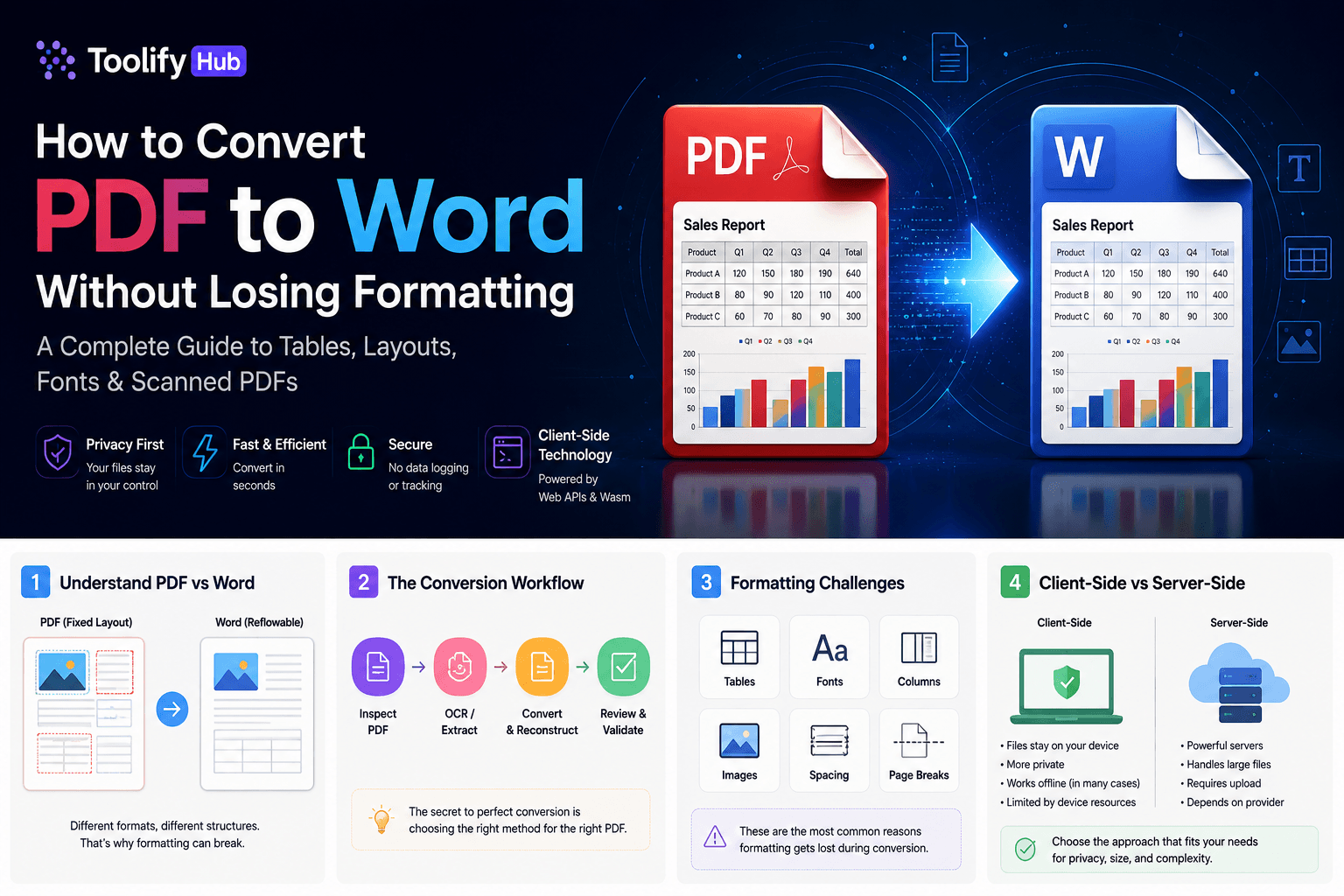
Executive Summary & Reference Guide
Master PDF document optimization, compression methods, and format conversions locally. This guide details how to reduce file sizes up to 80% using browser-based compression without exposing sensitive documents to third-party databases.
Converting a PDF to Word sounds simple until you open the result and discover that tables have collapsed, fonts have changed, columns have merged, and images have drifted halfway across the page. That experience is common because PDF and DOCX are built for different purposes. PDF is designed to preserve exact visual placement, while DOCX is designed to reflow text across different screen sizes and printers. Bridging that gap reliably is one of the harder problems in document processing.
The good news is that most formatting loss is predictable. Once you understand why it happens, you can choose the right tool, prepare the source file, and inspect the output in a way that catches problems before they become hours of manual cleanup.
Quick answer
Use a conversion method that matches your PDF type. Text-based PDFs with simple layouts convert cleanly with most modern converters. Scanned PDFs require optical character recognition before conversion. Table-heavy or multi-column documents need layout-aware tools, and confidential files should be processed with tools whose architecture you understand. After conversion, inspect tables, fonts, images, page breaks, and reading order before treating the result as final.
Why PDF-to-Word conversion loses formatting
PDF is primarily a fixed-layout format. When a document is saved or exported to PDF, the creator application records the exact position, size, and appearance of every text block, image, line, and vector shape on the page. There is no inherent concept of paragraphs, headings, or table cells; there are only coordinates and rendered glyphs. DOCX, by contrast, stores a hierarchical document structure: sections, paragraphs, runs, tables, styles, and relationships. When a converter reads PDF coordinates and tries to reconstruct that hierarchy, it must guess how pieces fit together.
That guessing is where formatting breaks. Text that was placed in two columns may be read left-to-right across the entire page, producing paragraphs that mix unrelated content. Tables built from individual text boxes rather than true table objects may become plain paragraphs. Fonts referenced in the PDF but not installed on the converting machine may be substituted, changing line height and character spacing. Images embedded at high resolution may be repositioned if the converter miscalculates their anchor point. Even simple headers and footers can merge with body text if the page-layout analyzer cannot distinguish between running headers and main content.
The complexity increases with the PDF source. Documents created by scanning, documents generated programmatically with custom graphics, and documents produced by converting from other formats often embed text in ways that are structurally ambiguous. A converter that works perfectly on a clean Word-exported PDF may produce a messy result on a scanned invoice or a research paper with complex two-column math notation.
PDF types: which ones convert best?
Not all PDFs are equally difficult to convert. The source construction method determines how much reconstruction work the converter must perform and how likely it is to guess wrong.
| PDF type | Conversion difficulty | Expected result | OCR required |
|---|---|---|---|
| Text PDF from Word or Google Docs | Low | Clean text, intact tables, good font retention | No |
| Scanned document with clear text | Medium | Editable text after OCR, possible recognition errors | Yes |
| Image-only PDF | High | Requires full OCR layer, accuracy depends on image quality | Yes |
| Table-heavy PDF | Medium to high | Tables may become paragraphs or malformed table objects | Sometimes |
| Multi-column PDF | Medium to high | Reading order may merge columns into single stream | No for text PDFs |
| Form PDF with fillable fields | Medium | Fields may become static text or disappear | No |
If you know your PDF type before converting, you can choose a tool whose strengths match the job instead of hoping a generic converter will handle every edge case.
How to convert a PDF to Word step by step
A systematic conversion workflow catches problems early and reduces cleanup time. The following steps apply whether you use an online converter, desktop software, or a client-side tool.
1. Inspect the PDF
Open the PDF in a viewer that shows text selection and document properties. If you can select and copy text, the PDF likely contains a text layer. If you cannot, it is probably image-based and will require OCR. Check the document outline, page count, and whether the file is password-protected. These properties affect tool choice and conversion settings.
2. Determine whether it contains selectable text
Try selecting a paragraph in the PDF viewer. If the cursor changes to a text cursor and the copied text looks normal in a plain text editor, the PDF has a text layer. If the copied text is gibberish, empty, or impossible to select, the PDF is image-based. This distinction is the most important decision point in the workflow.
3. Choose the appropriate conversion method
For text-based PDFs with simple layouts, a standard converter is usually sufficient. For scanned documents, choose a tool with integrated OCR. For table-heavy documents, look for converters that explicitly mention layout preservation or table reconstruction. For confidential documents, examine whether the tool processes files locally or uploads them to a server.
4. Convert to DOCX
Run the conversion using your chosen tool. If the tool offers options such as layout mode, flow mode, or OCR language selection, choose the settings that match your document. For documents with mixed content, you may need to convert sections separately and merge them afterward.
5. Inspect formatting
Open the DOCX in a word processor and compare it visually against the original PDF. Start with the first page and move through the document checking the major elements: headings, paragraphs, lists, tables, images, headers, footers, and page breaks. Do not rely on the converter's preview alone; previews often hide problems that become obvious in a full editor.
6. Check tables
Tables are the element most likely to break. Click inside each table and verify that rows, columns, merged cells, and borders are intact. Look for tables that have become plain paragraphs, missing header rows, or misaligned columns. If the document contains many tables, consider using a converter with explicit table reconstruction features or be prepared to rebuild complex tables manually.
7. Check fonts
Select text throughout the document and inspect the font name in your word processor. Missing fonts are usually substituted with system defaults, which can change spacing and line height. If the substituted font looks acceptable, you may leave it. If it causes layout problems, try installing the original font or choosing a converter that embeds fonts in the output.
8. Check images
Verify that images are present, correctly positioned, and at usable resolution. Some converters downsample images aggressively to reduce file size, producing blurry results. Others may lose images entirely if they are embedded as vector graphics or in unsupported formats. Check that captions and references to images are still associated correctly.
9. Check page breaks
PDF has fixed page boundaries; DOCX does not. A converter may insert page breaks where the original PDF ended pages, or it may create one continuous reflowable document. Decide which behavior you want and adjust accordingly. For documents that must match the original pagination exactly, you may need to insert manual page breaks after conversion.
10. Proofread OCR output
If the PDF required OCR, proofread the document carefully. OCR accuracy depends on image quality, font complexity, language, and the recognition engine. Numbers, symbols, and specialized terminology are common failure points. A quick visual scan will catch the worst errors, but a full read-through is better for critical documents.
11. Save the final document
Once you have corrected the major issues, save the document in DOCX format with a clear filename. Keep the original PDF as a reference and backup. If you need to share the document, consider whether formatting compatibility with older word processors matters; some advanced DOCX features may not render correctly in older software.
How to convert scanned PDFs to Word
Scanned PDFs are image-based documents that contain no selectable text layer. To convert them to editable Word documents, you need optical character recognition. OCR software examines the image, identifies character shapes, and maps them to Unicode text. The result is not perfect; it is an interpretation of visual data, and accuracy varies with image quality, font, language, and layout complexity.
For clean scans with standard fonts and high contrast, modern OCR engines can achieve very high accuracy. For documents with handwritten notes, faded text, low resolution, or complex layouts, errors become more frequent. Tables in scanned PDFs are especially difficult because the OCR engine must recognize both the text and the structural relationship between cells. Some converters perform OCR and document reconstruction in a single step; others first add a text layer to the PDF and then convert that layer to DOCX.
If you are converting scanned documents regularly, pay attention to image quality before you start. Deskew crooked pages, increase contrast if the text is faint, and scan at a resolution of at least 300 DPI. These preprocessing steps improve OCR accuracy more than switching to a more expensive converter.
How to preserve tables when converting PDF to Word
Tables are often the hardest element to preserve because PDF does not always store them as semantic table objects. In many PDFs, a table is rendered as a collection of positioned text boxes, lines, and images. The converter must infer the row and column structure from coordinates alone, and that inference can fail when cells span multiple rows or columns, when nested tables exist, or when the table borders are faint or inconsistent.
Simple rectangular tables with clear borders usually convert well. Complex tables with merged cells, header rows that span multiple columns, or nested sub-tables are more likely to become misaligned. After conversion, click inside each table and verify that the table structure is intact. In Word, you can view table properties to confirm row and column counts, merged cells, and border settings. If a critical table is malformed, it may be faster to rebuild it manually in Word using the original PDF as a reference than to try another converter.
How to preserve fonts, images, and layout
Fonts are a frequent source of post-conversion surprise. A PDF may reference fonts that are not installed on your system or on the converting server. When that happens, the converter substitutes a similar font, and the substitution can change character widths, line spacing, and overall page rhythm. If the document relies on a specific corporate or design font, verify that the font is available before converting, or choose a converter that embeds fonts in the DOCX output.
Images in PDFs are often compressed, downsampled, or embedded as raw streams. During conversion, an image may be repositioned if the converter misidentifies its anchor point, or it may be lost entirely if the image format is unsupported. Check that images are present, correctly cropped, and at a resolution suitable for the document purpose. For print documents, 300 DPI is a reasonable minimum; for screen-only documents, 150 DPI may be sufficient.
Layout preservation depends on the converter's page-analysis algorithm. Some converters attempt to replicate the original page structure exactly, inserting page breaks and preserving margins. Others treat the PDF as a stream of content and let Word reflow it naturally. The right choice depends on whether you need a document that looks like the original PDF or a document that is easy to edit in Word.
Online vs desktop vs client-side PDF conversion
PDF converters fall into three broad categories: online services, desktop applications, and client-side browser tools. Each makes different trade-offs.
Online converters are the most convenient. You upload a file, wait for processing, and download the result. They require no installation and work on any operating system. The trade-off is that your file travels to a remote server, and you are trusting the provider with its contents. For non-sensitive documents, this is usually acceptable. For legal contracts, financial records, or internal business documents, uploading to an unknown server is a risk worth evaluating.
Desktop applications such as Adobe Acrobat, PDF24 Creator, or LibreOffice handle conversion locally. They use the full power of your computer's CPU and RAM, which means they can process larger files and more complex layouts than most browser tools. The trade-off is installation overhead, platform dependency, and the need to keep the software updated.
Client-side browser tools process files inside the browser using JavaScript, WebAssembly, or both. When implemented correctly, they can keep files on the user's device while offering the convenience of an online tool. They are well-suited for one-off conversions, privacy-conscious users, and environments where installing software is restricted. The limitations are browser memory and CPU constraints, which can affect performance with very large files or very complex documents. For a client-side web utility suite that handles common PDF and document conversions, you can explore options like toolifyhub.tools, which offers browser-based utilities for PDF, image, and text tasks.
Client-side vs server-side PDF processing
The distinction between client-side and server-side processing is not just a privacy talking point; it changes the technical constraints of the conversion.
Client-side processing runs inside the user's browser. The PDF is read and transformed using JavaScript or WebAssembly, and the result is generated as a downloadable blob without leaving the browser tab. The advantages are that the file does not travel over the network, there is no server queue, and there is no dependency on the provider's uptime. The limitations are that browser tabs share memory with other tabs and extensions, large files can crash the tab, and computationally intensive operations may freeze the UI unless the implementation uses Web Workers. WebAssembly improves performance for compute-heavy tasks, but it is not a universal solution, and browser support for specific WASM features varies.
Server-side processing uploads the file to a backend, where it is processed using server-grade libraries and hardware. The advantages are more predictable performance with large files, access to mature PDF processing libraries, and the ability to run batch jobs. The limitations are upload latency, ongoing server costs, dependency on the provider's infrastructure, and the need to trust the provider's data handling practices. Server-side processing is not inherently less secure, but it does introduce a data-transfer step that client-side processing can avoid.
The practical choice depends on the document. A one-page text-based PDF converts well in a browser. A two-hundred-page scanned legal document with embedded tables and signatures may be more reliable on a desktop application with local OCR. A batch of invoices to process weekly is better handled by a script or desktop tool than by manual uploads to an online service.
How to choose a PDF-to-Word converter
No single converter is best for every document. Start by identifying your PDF type and your priorities. If the file is small, text-based, and non-sensitive, any modern converter will probably work. If the file is scanned, verify that the tool has OCR. If the file contains complex tables, look for converters that mention layout preservation or table reconstruction. If the file is confidential, verify whether the tool processes locally or uploads to a server. If the file is very large, desktop or server-side processing may be more reliable than a browser tool.
Test with a representative sample before committing to a tool for batch work. Convert one or two pages, inspect the output, and only then process the full document. This approach takes a few extra minutes but prevents the frustration of discovering layout problems after converting hundreds of pages.
Common PDF-to-Word problems and fixes
Even with the right tool, conversion problems happen. Knowing the most common failures and their fixes helps you recover quickly.
Text appears in the wrong order. This usually happens with multi-column PDFs or PDFs with text boxes positioned out of reading order. Try a converter with stronger layout analysis, or copy the text manually and reflow it in Word.
Tables break into paragraphs. The PDF likely did not contain true table objects. Rebuild the table in Word using the PDF as a reference. For future conversions, try a tool with explicit table-preservation mode.
Fonts change or look different. The converter substituted a missing font. Install the original font if possible, or accept the substitution if readability is not affected.
Images move or disappear. The converter may have misidentified the image anchor or encountered an unsupported format. Check the converter's image-handling options and try a different tool if necessary.
Page breaks change. DOCX reflows content, so fixed-page boundaries do not always carry over. Insert manual page breaks if pagination matters.
Scanned text becomes incorrect. OCR errors are common with poor image quality, unusual fonts, or specialized terminology. Proofread carefully, and preprocess the image by increasing contrast or deskewing before reconverting.
Columns merge into one stream. The converter read text in source order rather than visual columns. Try a converter with multi-column detection or adjust the reading order manually.
Symbols become corrupted. Special characters, mathematical symbols, and ligatures are often lost or replaced with placeholders. This is a known limitation of many converters; manual correction may be necessary.
PDF-to-Word privacy checklist
Before uploading a confidential PDF to any online service, verify where the file goes, how long it is stored, and who can access it. Check whether the service processes files on its own servers or passes them to third parties. Look for automatic deletion policies and encryption statements. If the service requires an account, review its data retention settings. For sensitive documents, prefer tools that process locally in your browser or on your own machine, where you control the data path.
Privacy is not automatic. A client-side web tool can keep files local if it is implemented that way, but not all browser-based tools share the same architecture. A desktop application keeps files on your machine by default, but it may still phone home for updates or telemetry. A cloud service may have strong security and short retention, but it is still a third party. Read the privacy policy, verify the technical implementation where possible, and choose the tool whose actual behavior matches your requirements.
Using ToolifyHub for PDF-to-Word conversion
For quick one-off conversions, browser-based utilities offer a practical middle ground between installing desktop software and uploading files to an unknown server. ToolifyHub includes a PDF to Word converter among its collection of browser-based tools, and it also provides related utilities such as PDF compression and PDF merging for document preparation before conversion. For documents with complex tables, scanned pages, or strict confidentiality requirements, you should still inspect the output carefully and consider desktop software for final production work. Browser tools work best when you understand their scope and limitations.
Final checklist
Use this checklist before you treat a converted document as final.
- Text checked for missing or reordered content
- Tables verified for structure, merged cells, and alignment
- Fonts inspected for substitutions and spacing changes
- Images confirmed present and correctly positioned
- Headers and footers verified against the original
- Page breaks checked against required pagination
- OCR output proofread for recognition errors
- Special characters and symbols validated
- Document opened in the target word processor for final review
- Original PDF preserved as reference
Frequently asked questions
Can I convert a PDF to Word without losing formatting?
You can preserve most formatting if you use the right tool for your PDF type and inspect the result carefully. Text-based PDFs with simple layouts convert cleanly. Complex documents with tables, columns, or scanned text require more careful tool selection and post-conversion review. No converter is perfect, but preparation and inspection reduce cleanup time significantly.
Why does PDF-to-Word conversion change the layout?
PDF stores fixed positions, while DOCX stores a reflowable document structure. The converter must infer paragraphs, headings, tables, and reading order from coordinates, and that inference can fail with complex layouts, multi-column text, or PDFs that were not generated from a standard word processor.
Can scanned PDFs be converted to editable Word documents?
Yes, using optical character recognition. OCR converts the image-based text into editable characters, but accuracy depends on image quality, font, language, and layout. Always proofread OCR output before relying on it for important documents.
How accurate is OCR when converting PDF to Word?
Modern OCR engines are accurate on clean scans with standard fonts, but accuracy drops with poor image quality, handwriting, faded text, complex tables, or specialized terminology. Expect to correct some errors, especially in documents that were not designed for OCR.
Why do tables break when converting PDF to Word?
Tables break because many PDFs do not store tables as semantic table objects. Instead, they are rendered as positioned text and lines. The converter guesses the table structure from coordinates, and that guess is often wrong for merged cells, nested tables, or faint borders.
Can I convert a PDF to Word for free?
Yes. Many online converters, desktop applications, and browser-based tools offer free conversion. The trade-off is usually convenience versus privacy or feature depth. Evaluate the tool based on your document type, file size, and sensitivity rather than price alone.
Is online PDF-to-Word conversion safe for confidential files?
It depends on the service. Online converters that upload files to remote servers introduce a data-transfer step. For confidential documents, verify the provider's retention policy, encryption practices, and whether they process files locally. Client-side browser tools that keep files on your device avoid the upload step entirely.
What is the difference between PDF and DOCX?
PDF is a fixed-layout format designed to look identical on any device. DOCX is a reflowable document format designed for editing and adaptation to different screen sizes and printers. The structural difference is why conversion is not a simple format switch; it requires reconstructing document semantics from visual coordinates.
Is client-side PDF conversion more private?
Potentially, yes. When processing happens in the browser, the file does not need to leave your device. However, privacy depends on the complete implementation, not just the claim of client-side execution. Verify that the tool does not load remote dependencies, send telemetry, or rely on backend services for the specific conversion you are performing.
How do I fix a Word document after PDF conversion?
Start by comparing the DOCX against the original PDF page by page. Fix tables first, then fonts, then images, then page breaks. Use Word's selection and formatting tools to correct substitutions and misalignments. If the document is very complex, consider rebuilding problematic sections manually rather than trying another converter.
Related Tools
convert PDFs to Word documents, compress PDFs before conversion, merge multiple PDFs into one file, convert Word documents back to PDF

Ali Gohar
Founder of ToolifyHub.tools
I built ToolifyHub.tools after getting frustrated with expensive, watermarked, and signup-required tools. Based in Larkana, Pakistan. I test every tool personally before publishing.
Try Related Tools Free
Professional utilities to help you get things done faster.