How to Send Large Files via Email in 2026: 6 Free Methods (Gmail & Outlook)
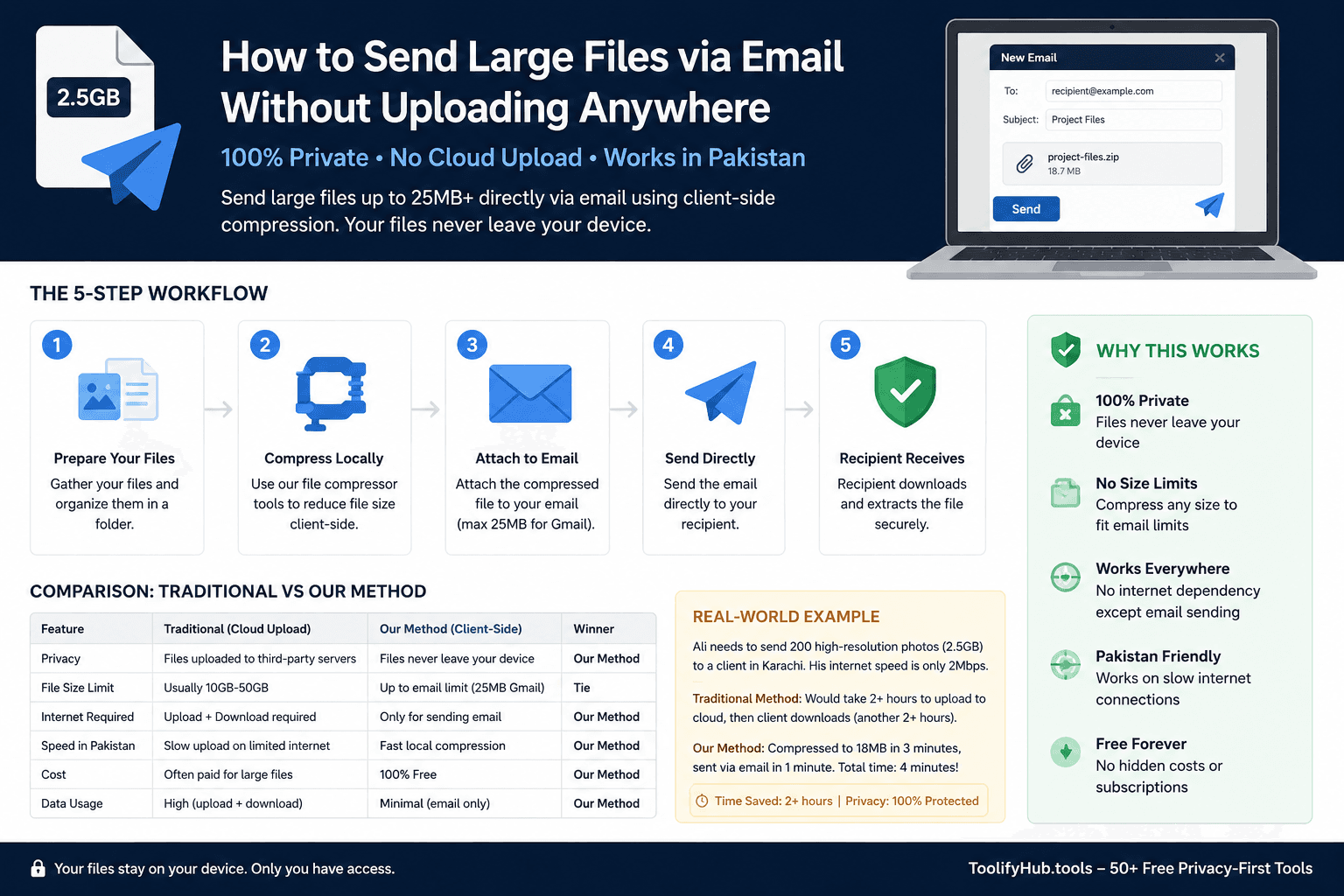
Executive Summary & Reference Guide
This authoritative guide provides step-by-step instructions, practical examples, and industry best practices for using our browser-based utility tools. Learn how to optimize your workflow securely without server uploads.
How to Send Large Files by Email in 2026
If your file exceeds your email provider’s attachment limit (25 MB for Gmail, 20 MB for Outlook), choose one of two proven workflows:
Compress the file locally in your browser (using PDF Compressor or Image Compressor). This shrinks file size by 50–80% with zero server uploads, letting you attach it directly.
Use built-in cloud links: Google Drive in Gmail, OneDrive in Outlook, or Apple Mail Drop (up to 5 GB). Set permissions to “Anyone with the link” to prevent recipient permission errors.
Email Provider Attachment Limits in 2026
Every major email service enforces a strict cap on direct file attachments. Because of transmission encoding overhead, the actual usable attachment size is always smaller than the advertised limit:
| Email Service | Direct Attachment Cap | Safe Practical Limit | Integrated Cloud Workaround | Max Cloud Transfer |
|---|---|---|---|---|
| Gmail (Google Workspace) | 25 MB | ~18 MB | Google Drive link | Up to 10 GB |
| Outlook.com / Hotmail | 20 MB | ~15 MB | OneDrive cloud link | Up to 2 GB (Free) |
| Microsoft 365 (Exchange) | 25–150 MB* | Policy-dependent | SharePoint / OneDrive | Up to 250 GB |
| iCloud Mail (Apple) | 20 MB | ~15 MB | iCloud Mail Drop | Up to 5 GB (Free) |
| Yahoo Mail | 25 MB | ~18 MB | Google Drive / Dropbox | Provider-dependent |
| Proton Mail | 25 MB | ~18 MB | Proton Drive link | Up to 5 GB (Free) |
*Exchange administrator limits vary. Note: If your recipient’s mailbox server has a lower incoming cap (e.g. 10 MB on legacy corporate servers), your message will bounce even if your sender limit is 25 MB.
Why Your 20 MB File Bounces in a 25 MB Inbox
Email protocols (SMTP) were originally architected exclusively for 7-bit ASCII plain text. When you attach a binary file—such as a PDF, JPEG photo, ZIP archive, or MP4 video—your email client must convert that raw binary data into ASCII text using MIME Base64 encoding (IETF RFC 2045).
Base64 Formula: Encoded Size ≈ Raw File Size × (4 / 3) + Headers
• 15 MB raw file → ~20.0 MB encoded stream (Delivers successfully in Gmail)
• 19 MB raw file → ~25.3 MB encoded stream (FAILS in Gmail — exceeds 25 MB cap!)
• 22 MB raw file → ~29.3 MB encoded stream (FAILS in Outlook and Gmail)
Rule of thumb: To ensure reliable direct delivery across all recipient mail servers, keep your uncompressed attachment size under 16 MB for Gmail and 13 MB for Outlook.
Method Selection Matrix: Which Tool Should You Use?
Use this decision framework based on your exact file size, file format, and security sensitivity:
| Your Scenario | Target File Size | Recommended Method | Key Advantage |
|---|---|---|---|
| PDF report, contract, or scan | 25 MB – 100 MB | Local Browser PDF Compressor | 100% private, 0 uploads, direct attachment |
| High-res photos or graphics | 20 MB – 80 MB | Local Image Compressor | Reduces size 60–90% without visual degradation |
| Multiple mixed documents / folders | 10 MB – 30 MB | Native OS ZIP Archive | Packages files neatly into 1 single attachment |
| Large video or archive (Gmail) | 100 MB – 10 GB | Google Drive Shared Link | Seamless Gmail integration, persistent access |
| Large video or presentation (Outlook) | 100 MB – 2 GB | OneDrive Cloud Link | Native Microsoft 365 permissions & download |
| One-time send to external client | 500 MB – 5 GB | WeTransfer / Smash / Filemail | Recipient does not need an account or login |
| Apple device to Apple/Non-Apple user | Up to 5 GB | Apple iCloud Mail Drop | Automatic 30-day link, zero iCloud storage cost |
The 6 Best Methods to Send Large Files by Email
Local In-Browser Compression (Best for Privacy & Fast Delivery)
If your PDF, image, or document is between 25 MB and 100 MB, compressing it locally in your browser is the fastest and most secure solution. Unlike cloud upload tools that store copies of your files on third-party servers, modern client-side compression executes directly in your browser’s WebAssembly memory.
- Open ToolifyHub PDF Compressor or Image Compressor.
- Select your oversized file (e.g., a 45 MB PDF report).
- Select your compression preset (Medium preserves high print quality, High achieves maximum size reduction).
- Download the resulting file (typically reduced to 6–10 MB).
- Attach the compressed file directly to your Gmail or Outlook email.
Gmail + Google Drive (For Files Up to 10 GB)
Gmail seamlessly integrates with Google Drive to bypass the 25 MB limit automatically. When an attachment exceeds 25 MB, Gmail uploads the asset to your Google Drive and embeds a secure download link into your email draft.
Step-by-Step Gmail Walkthrough:
1. In Gmail, click Compose and click the Google Drive icon in the bottom toolbar (or drag & drop your 100MB+ file into the compose window).
2. Select the file from your Drive, or switch to the Upload tab to upload it from your computer.
3. Choose “Drive link” at the bottom right and click Insert.
4. Crucial Step: When clicking Send, Gmail will prompt you with “Someone needs access to the file.” Select “Anyone with the link can view” to ensure the recipient can open it without having to send you an access request email.
Outlook + Microsoft OneDrive (For Files Up to 2 GB – 250 GB)
In Outlook (both web and desktop apps), files exceeding 20 MB can be shared through OneDrive cloud storage. This ensures corporate security compliance while allowing recipients to view and download heavy assets.
Step-by-Step Outlook Walkthrough:
1. In Outlook, click New Email > Attach File > Browse Cloud Locations (or select your local file).
2. If your local file exceeds 20 MB, Outlook will prompt: “Upload and share as a OneDrive link.”
3. Click the attachment dropdown next to the inserted cloud file and verify permissions: choose “Anyone can view” for external clients, or “Recipients can view” for internal organization teammates.
Free Transfer Services (WeTransfer, Smash, Filemail)
When sending massive 1 GB to 5 GB files (such as 4K video footage, CAD models, or RAW photo batches) to clients who don’t want to log in to Google or Microsoft accounts, specialized transfer services offer one-click download links:
Free transfer up to 2 GB. Generates a download link with 7-day automatic file expiration. No recipient account required.
No file size limit on free tier (files over 2 GB have standard queue priority). Links expire after 7 days.
Free transfer up to 5 GB per transfer with email tracking receipts and UDP transfer acceleration.
Apple iCloud Mail Drop (Up to 5 GB Free for Mac & iPhone)
If you use the Apple Mail app on macOS, iPhone, or iPad (or via iCloud.com), Apple includes a built-in feature called Mail Drop. When you attach a file up to 5 GB, Mail uploads it to iCloud transparently.
- Zero Cloud Cost: Mail Drop storage does not count against your personal 5 GB free iCloud storage quota.
- Cross-Platform Compatibility: Recipients using Windows, Android, or Outlook receive an attractive email with a direct download button.
- 30-Day Expiration: Files remain available for download for 30 calendar days before automatic deletion.
Native OS ZIP Archive (For Bundling Multiple Files)
When sending 10 to 20 separate files (e.g. Word docs, spreadsheets, screenshots) that total between 15 MB and 30 MB, creating a ZIP archive packages everything into a single organized file and compresses plain-text and XML data:
Select all files > Right-click > Compress to ZIP file (or Send to > Compressed (zipped) folder).
Select all files > Right-click (Control-click) > Compress Items.
How to Send Sensitive & Confidential Files Safely
If you are transmitting sensitive tax documents, contracts, medical records, or proprietary source code, avoid sending unencrypted links. Follow these safety protocols:
Use 7-Zip or WinRAR to create an AES-256 encrypted archive. Send the decryption password via a separate channel (e.g., SMS or Signal).
Compress PDFs and images locally in your browser memory before sending. This guarantees zero third-party cloud data harvesting.
If sharing via OneDrive or Google Drive, configure links to expire after 7 days and disable editing/re-sharing permissions.
Common Mistakes That Cause Email Bounces
Forgetting Drive Sharing Permissions
Leaving Google Drive links set to “Restricted” prevents recipients from opening your files, generating embarrassing “Request Access” email loops.
Ignoring MIME Encoding Expansion
Attaching a 23 MB file and expecting it to send will fail because Base64 encoding inflates the payload to ~30.6 MB, exceeding recipient limits.
Zipping Video Files Expecting Size Reduction
MP4 and MOV video files are already heavily compressed. Zipping a 500 MB video only reduces it by 1–2%. Always use cloud links or video downscalers instead.
Missing Temporary Link Expiration
WeTransfer and Smash links expire after 7 days. If your recipient checks their inbox late, they will face a broken 404 download page.
Free Browser Utilities for Email Optimization
Optimize and compress your attachments client-side with zero data tracking, zero server uploads, and unlimited free access:
Frequently Asked Questions
How do I send a file larger than 25 MB by email?
To send a file larger than 25 MB by email, you have two primary options: 1) Compress the file locally in your browser (e.g., using a client-side PDF or Image compressor) to bring it below 25 MB and attach it directly. 2) Upload the file to cloud storage (Google Drive in Gmail or OneDrive in Outlook) and insert a shareable download link into your email body.
Why does my 20 MB file bounce when emailing in Gmail?
Email attachments are encoded into 7-bit ASCII text via MIME Base64 (RFC 2045) for transmission. This encoding adds roughly 33% to 37% overhead to binary files. Consequently, a 20 MB file expands to approximately 26.7 MB in transit, exceeding Gmail’s strict 25 MB total message limit.
Can I send a 1GB or 5GB file through Gmail or Outlook?
Yes, but not as a raw direct email attachment. In Gmail, uploading the file to Google Drive lets you insert a link to files up to 10 GB. In Outlook, OneDrive supports cloud attachments up to 2 GB (standard) and up to 250 GB with Microsoft 365. Alternatively, free services like WeTransfer or Smash allow up to 2 GB–5 GB transfers via direct download links.
What is the most private way to send a confidential document by email?
The most private method is in-browser client-side compression. Because the compression runs directly in your device’s memory using WebAssembly/JavaScript, zero bytes are transmitted to third-party cloud servers. Once compressed below 25 MB, you can attach the document directly to an encrypted email.
How do I avoid Google Drive “Permission Denied” errors when emailing links?
When sharing a Google Drive link, right-click the file in Drive, select Share > Share, and change General Access from “Restricted” to “Anyone with the link” (set role to Viewer). This ensures the recipient can open and download the file immediately without sending an access request email.
What is Apple Mail Drop and how large of a file can it send?
Apple Mail Drop is a built-in feature in iCloud Mail and the macOS/iOS Mail app. When an attachment exceeds 20 MB, Mail automatically uploads it to iCloud and sends a download link to the recipient. It supports files up to 5 GB, links remain active for 30 days, and it does not consume your personal iCloud storage quota.
Technical references: Google Workspace Support (Attachment limits & Drive sharing), Microsoft Support (Outlook & OneDrive attachment limits), Apple Support (iCloud Mail Drop limits), and IETF RFC 2045 (MIME Base64 encoding specifications).
Review our Editorial Policy, Accuracy Policy, and Security Commitment for detailed methodology.
Related File Tools
Compress large PDFs before emailing, Shrink images for email attachments, Convert Word DOCX to PDF, Split oversized PDFs into smaller chapters

Ali Gohar
Founder of ToolifyHub.tools
I built ToolifyHub.tools after getting frustrated with expensive, watermarked, and signup-required tools. Based in Larkana, Pakistan. I test every tool personally before publishing.
Try Related Tools Free
Professional utilities to help you get things done faster.