Why is my QR code not scanning? (Common causes + fixes)
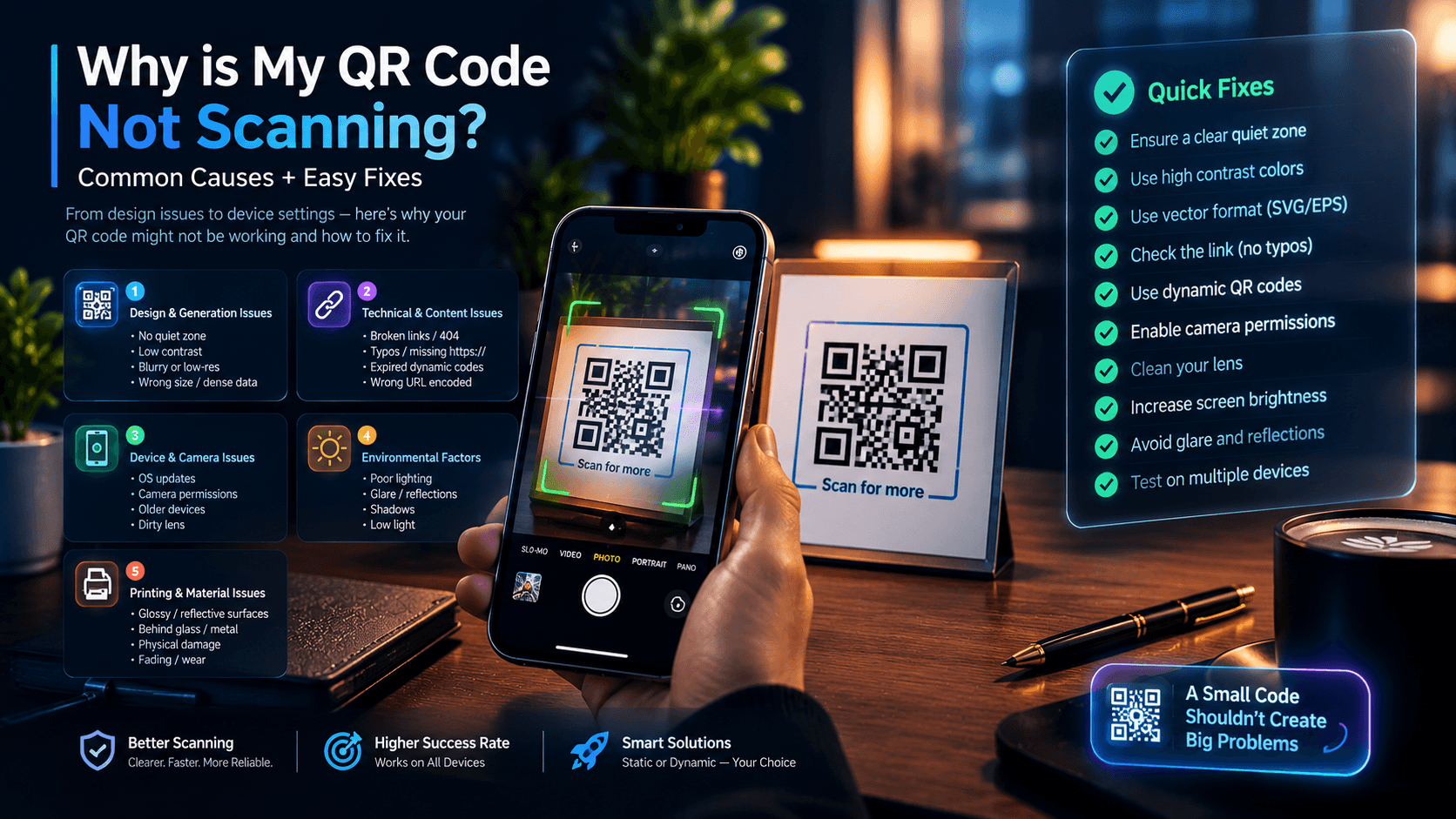
Executive Summary & Reference Guide
Troubleshoot and resolve 2D matrix barcode scanning failures. This guide details optical quiet zones, module contrast rules, scanning distance scaling, and device-specific display overrides to ensure 100% scannability across iOS and Android.
⚡ Quick Answer: Why Won't My QR Code Scan?
Almost every QR code scanning failure traces back to five root categories: missing quiet zones (no clear margin), low color contrast (light code on dark backgrounds or low-contrast hues), blurry or undersized print, broken or expired destination links, or device factors (dirty camera lens, screen glare, or recent Android/iOS display settings like Night Light and Dark Mode). Testing the code on white paper with a clean lens under even lighting resolves over 90% of failures.
📌 TL;DR Summary: Top 5 Instant Fixes
- Add a Quiet Zone: Keep a clear blank border of at least 4 module widths around the entire code.
- Ensure Dark-on-Light Contrast: Always use dark modules on a solid light background with at least 40% contrast ratio. Avoid inverted codes.
- Scale by Distance: Minimum 2 cm × 2 cm for handheld cards. Follow the rule:
Code Width = Scanning Distance / 10. - Use Dynamic QR Codes: For campaigns, use dynamic codes with short URLs so destination links can be edited if broken, keeping the matrix sparse and scannable.
- Screen Scanning Fix: If showing a ticket on a smartphone, maximize screen brightness, disable Night Light / Eye Comfort, and switch to 60Hz.
Generate 100% Scannable ISO-Compliant QR Codes
Create crisp, high-contrast QR codes with built-in quiet zones and Reed-Solomon error correction. Export vector SVG and 300 DPI images for free, private, client-side generation.
Open Free QR Code Generator Tool →You point your phone at a QR code. Nothing happens. You adjust the angle, move closer, try again — still nothing. Frustration builds.
I've seen this bite people at conferences, on packaging, in restaurants. The code looks fine. Your camera works for photos. But that little square just won't register.
Almost every scanning failure traces back to a handful of known causes. Most are fixable in seconds. This guide breaks them down by root cause, with practical fixes backed by real user reports from Reddit, expert answers from Quora, and top-ranking technical guides.
1. Design & Generation Issues (The Code Itself)
1.1 Missing or Insufficient Quiet Zone
The quiet zone is the blank margin around the QR code — typically 4x the width of the modules. Without it, scanners can't distinguish the code from surrounding elements.
“If it scans but the page does not load, the QR itself is probably fine and the issue is the destination, redirect, SSL, or network path.” — Reddit user on r/qrcode
The QR Code Generator guide explains: “Your QR Code requires a margin of empty space around the border... If you crowd the code with text, graphics, or borders, the scanner cannot locate the three corner position markers.”
1.2 Poor Color Contrast or Inverted Colors
Scanners need high contrast between dark modules and light background. Light-on-light, dark-on-dark, or inverted (white code on black) schemes confuse many scanners.
The QR Code Generator guide warns: “Avoid using light QR Code colors on a light background, such as yellow on white. Avoid dark codes on dark backgrounds, like navy blue on black.”
The QR Code Generator blog puts it plainly: “For maximum compatibility, stick to the standard: dark-colored QR Codes on light-colored backgrounds.”
On Quora, Julie Frey noted that contrast issues often masquerade as positioning problems: “Are you holding your phone steadily? Is your phone close enough to the code? Is there anything between the phone and the code?”
1.3 Blurry, Low-Resolution, or Improperly Resized Codes
Raster images (JPG/PNG) scaled up become pixelated. The distinct edges of modules blur, confusing the scanner.
The QR Code Generator guide explains: “Pixelation confuses the scanner... Always use high-resolution files for print. A vector format like SVG or EPS is ideal because you can scale it to any size without losing sharpness.”
“I think what is happening is that the QR Image on the label is too small. You have to talk to the FileMaker developer to adjust the QR image...” — Reddit user on r/filemaker
1.4 Incorrect Sizing for Scanning Distance
Size must match scanning distance. Too small = modules blur together. Too large = won't fit in camera frame.
The QR Code Generator guide states: “Size relates directly to scanning distance... about one inch of code for every foot of scanning distance.” Minimum 2 cm × 2 cm for handheld materials.
The QR Code Generator blog adds: “Follow the Size = Distance/10 rule (e.g., a QR Code meant for a 20-meter scan should be 2 meters wide). For print materials, use a minimum of 3 cm x 3 cm.”
1.5 Overloaded Data / Dense Patterns
Static QR codes encode data directly. Long URLs = dense modules = harder to scan, especially on older cameras.
The QR Code Generator guide explains: “The more data you add, the denser the pattern becomes... You can solve this by using a URL shortener or a Dynamic QR Code. Dynamic codes store a short redirect URL, keeping the data pattern simple and sparse.”
The QR Code Generator blog adds: “Long URLs, too much embedded data, or unnecessary content make QR Codes dense and hard to scan... Try a dynamic QR Code that automatically reduces the size.”
2. Technical & Content Issues
2.1 Broken Links, Redirects, 404s
Code scans perfectly but destination is dead. Static codes can't be fixed after printing.
“If it scans but the page does not load, the QR itself is probably fine and the issue is the destination, redirect, SSL, or network path.” — Reddit user on r/qrcode
The QR Code Generator guide warns: “Nothing frustrates a user more than successfully scanning a code only to land on a '404 Not Found' page... Static QR Codes are particularly risky here because you cannot edit the destination URL after creation.”
2.2 Incorrect Data Entry (Typos, Missing Protocol)
The QR Code Generator blog notes: “Typos, missing URL prefixes (e.g., missing 'https://'), or broken links prevent proper redirection... Double-check all data before generating the QR Code. Test links on multiple devices and browsers.”
2.3 Dynamic QR Code Limits / Expired Campaigns
The QR Code Generator blog warns: “Some dynamic QR Codes expire after reaching a scan limit or campaign expiration... Use a QR Code generator that lets you create forever free dynamic QR Codes. Set clear campaign timelines.”
3. Device & Camera Issues
3.1 Android OS Updates Breaking Screen QR Scanning
“Why my Iphone is not scanning QR Codes despite given camera... It's a payment app. I would probably try reinstalling the app. In Camera app, there should be an option for QR code scanning.” — Reddit user on r/iphone
But the real insight came from Google's Android Community. Linnéa Svensson reported: “Ever since the Android update somewhere in November 2025 I've been unable to have QR codes on my phone's screen scanned... The issue isn't with your QR scanner or camera. After the Android update in November 2025, the way QR codes are displayed on your phone's screen has changed — brightness, contrast, smoothing, and refresh rate adjustments in the OS make the QR codes harder for older ticket scanners to read.”
Soyeb_GPE (Silver Product Expert) recommended:
- Set screen brightness to maximum when showing the QR code
- Turn off Night Light / Eye Comfort / Extra Dim
- Use 60Hz refresh rate if higher option exists
- Disable Dark Mode when displaying QR code
- Use app's “High-contrast” or “Classic QR” option if available
3.2 Camera Permissions / Settings
Google's Android Community (Soyeb_GPE): “Check camera settings to enable 'Scan QR codes,' clean your lens, and ensure good lighting/distance; if still failing, try using Google Lens mode or downloading a dedicated app or restarting your phone.”
Quora (Al Klein): “If your camera won't do it, you haven't installed a QR scanning app.”
3.3 Older Devices Without Native QR Scanning
Quora (Zolta Ha): “Their basic software is not capable. Find an app that can read QR codes. The software must be capable of reading the QR picture and translating it to the text it contains.”
The QR Code Generator blog: “Some older smartphones do not have built-in QR Code scanners... Suggest users download Google Lens or other top QR scanner apps. Provide a backup short URL in case scanning is not possible.”
4. Environmental & Physical Factors
4.1 Lighting, Glare & Reflections
The QR Code Generator guide explains: “Light plays a massive role in readability. A code printed on glossy magazine paper or a laminated menu can reflect overhead lights. This glare creates a 'hot spot' that obscures part of the code.”
The QR Code Generator blog: “Place QR Codes in evenly lit areas with no direct glare or shadows... use matte finishes.”
Quora (Ian Bowden): “There are probably a hundred or more reasons... 1. The symbol isn't readable... It might have some elements missing or added, or there's not enough contrast between the two colours used.”
4.2 Dirty Camera Lens / Smudges
The QR Code Generator blog: “Fingerprints, dust, or smudges on a smartphone camera interfere with scanning... Advise users to clean their camera lenses with a microfiber cloth before scanning.”
4.3 Poor Lighting / Shadows / Low Light
The QR Code Generator guide: “Poor lighting conditions, direct sunlight, or shadows can affect scanability... Place QR Codes in evenly lit areas with no direct glare or shadows.”
Quora (Ashish Chandra): “There could be several reasons why your QR code won't scan. It might be damaged, blurry, or too small. The lighting might be poor, or your camera might not be focusing properly.”
5. Printing & Material Issues
5.1 Wrong Materials (Glossy, Reflective, Behind Glass)
The QR Code Generator guide: “Avoid placing codes behind glass windows or on highly reflective metallic surfaces... Matte finishes usually perform better than gloss for scannable prints.”
The QR Code Generator blog: “Avoid reflective surfaces, use matte backgrounds.”
5.2 Physical Damage / Wear / Fading
The QR Code Generator guide: “Replace codes that show signs of physical wear, such as fading from sun exposure or water damage, as these physical defects can ruin readability.”
6. Quick Diagnostic Checklist
| Symptom | Likely Cause | Quick Test |
|---|---|---|
| Camera won't focus/lock | Low contrast, missing quiet zone, blur | Test on white paper, good light |
| No pop-up appears | Code not recognized as QR | Test with Google Lens |
| Scans but 404/error | Broken link, typo, expired | Open URL directly in browser |
| Works on some phones only | Density too high, OS version | Test Dynamic QR / shorter URL |
| Scans on paper not screen | Brightness/refresh/Dark Mode | Max brightness, disable Dark Mode |
| Scans but wrong destination | Wrong URL encoded | Verify URL in generator |
7. Pre-Publish Testing Protocol (Never Skip)
QR Code Generator Pre-Publish Checklist:
The QR Code Generator adds: “Test with an iPhone running the latest iOS update. Test with various Android devices running different versions... Test with third-party scanning apps and native cameras.”
8. When to Use Dynamic vs Static QR Codes
| Scenario | Recommended QR Type |
|---|---|
| Permanent info (WiFi, contact) | Static OK |
| Marketing campaigns | Dynamic (editable link) |
| Long URLs | Dynamic (short redirect) |
| Campaigns needing analytics | Dynamic |
| Permanent signage | Dynamic (updateable) |
| One-time personal use | Static OK |
Conclusion
QR code scanning failures are rarely mysterious. They almost always trace back to:
- Design flaws (contrast, quiet zone, size, density)
- Technical errors (broken links, typos, static vs dynamic)
- Device factors (OS updates, permissions, older hardware)
- Environment (lighting, glare, dirty lens)
- Physical degradation (fading, damage, wrong material)
Start with the basics: test on white paper in good light with a clean lens. If it works there but fails in production, the issue is environmental or material. If it fails even in ideal conditions, the code itself has a design or data problem.
Use Dynamic QR codes for anything that might need link updates. Test on at least one iPhone and one Android before any print run. And always include a human-readable short URL as backup — because sometimes the scanner just won't cooperate, and your user still needs to reach the destination.
📚 Sources & References
- • Reddit: Community discussions on r/qrcode (threads 1phq0lp, 1m80ptf), r/iphone (thread 1l2apgv), r/filemaker (thread 1gb7789), and r/Rabbitr1 (thread 1cdsxlj).
- • Quora: Technical answers on “Why won't my phone scan a QR code?” (Julie Frey, Terry Lambert, Michael Dickens, Ian Bowden, Ashish Chandra, Jewel Luther, Al Klein, Ralf Quint, Zolta Ha, Nickie Williams, Norbert Sroke, Rachel Jia, Juan Manuel Oropeza) and “What are the reasons NOT to scan a QR code?”.
- • Google Android Community: Support Thread 402271663 (Android update screen QR scanning issue reports by Linnéa Svensson and Silver Product Expert recommendations by Soyeb_GPE).
- • QR Code Generator Blog: “QR Code Scanning Problems: Common Issues and Fixes”.
- • The QR Code Generator Blog: “Why is My QR Code Not Working? (14 Reasons and Fixes)”.

Written by Ali Gohar
Founder of ToolifyHub & Product Systems Engineer
Technical Disclaimer: Always perform physical scan testing on test proofs across multiple smartphone models and camera lenses before commercial print deployment.
Related Free Utilities on ToolifyHub: QR Code Generator | URL Encoder & Decoder | Color Picker & Contrast | Image Resizer
Related Tools
generate QR codes for URLs and WiFi, encode URLs for QR codes, check color contrast

Ali Gohar
Founder of ToolifyHub.tools
I built ToolifyHub.tools after getting frustrated with expensive, watermarked, and signup-required tools. Based in Larkana, Pakistan. I test every tool personally before publishing.
Try Related Tools Free
Professional utilities to help you get things done faster.