Why You Actually Need an Image Resizer
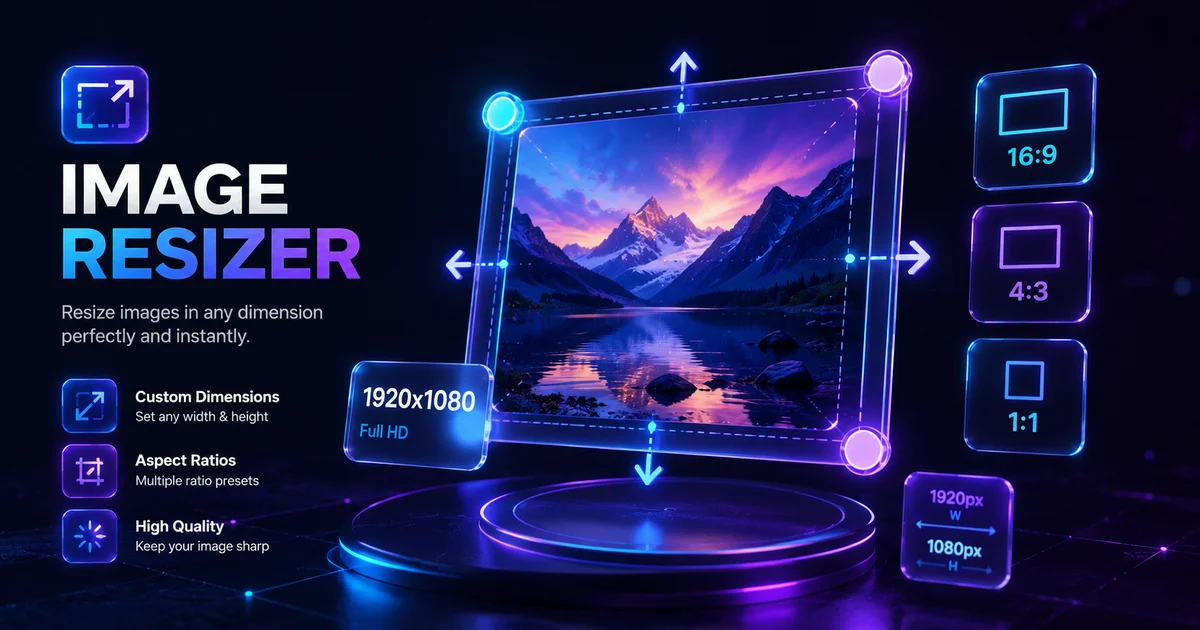
ToolifyHub Image Resizer is an enterprise-grade, browser-based image scaling and dimension conversion platform. Whether preparing multi-channel marketing campaigns, formatting product photos for Shopify, or complying with strict government exam upload constraints, this tool delivers high-fidelity bicubic resampling without transmitting photos to remote servers.
Unlike cloud converters that throttle batch uploads or enforce paywalls, our client-side architecture leverages HTML5 2D Canvas and Web Workers to process single or bulk imagery locally. Users retain complete control over aspect ratio retention, letterbox padding, center-crop boundaries, and direct target file size (KB) caps.
Why Use ToolifyHub.tools?
Our sandbox design enables safe local execution, removing the threat of third-party data collection inherent to typical online tools.
🔒 100% Privacy-First Sandbox
This tool runs entirely inside your browser. No files or inputs are sent to any external server.
❌ No Sign-Up or Accounts
Enjoy instant, anonymous access to all features without sharing email or credentials.
⚡ High-Speed Local Rendering
Optimized client-side rendering ensures near-zero processing wait times.
🎁 Free Forever with Zero Caps
Supported exclusively by simple display advertisements, keeping premium tools accessible to everyone.
How to Use the Image Resizer on ToolifyHub.tools
- 1
1. Upload Single or Multiple Image Files
Select one or drag multiple JPG, PNG, WebP, or GIF photos into the workspace. All files are loaded locally into browser memory with zero network latency.
- 2
2. Choose Resizing Mode (Pixels, Presets, Scale, or Target KB)
Specify exact pixel dimensions with optional aspect ratio lock, pick from verified social/print presets, adjust percentage scaling, or input a strict target KB limit.
- 3
3. Configure Aspect Ratio Fitting Strategy
Choose Fit (Letterbox padding) to preserve the entire image, Fill (Crop) to match exact bounds without black borders, or Stretch for direct dimension overrides.
- 4
4. Select Output Format & Compression Quality
Export as JPEG for universal compatibility, PNG for lossless graphics, or WebP for optimal web delivery. Adjust the quality slider to tune visual fidelity.
- 5
5. Preview & Download (Single or 1-Click ZIP Archive)
Inspect output dimensions and file size metrics in real time. Download individual photos or package the entire queue into a compressed ZIP file with one click.
Real-World Scenarios Where This Saves You
E-Commerce Product Catalogs (Shopify, Amazon, WooCommerce)
Standardize hundreds of supplier product photos into uniform square 2048×2048 px dimensions to ensure clean, consistent zoomable catalog listings.
Government Job, University & Visa Portals (UPSC, SSC, USCIS)
Satisfy rigid portal constraints where photo submissions are automatically rejected if they exceed 50KB or deviate from 2×2 inch (600×600 px) dimensions.
Social Media Channel Art & Marketing Assets
Quickly convert master creative graphics into exact aspect ratios for YouTube thumbnails (16:9), Instagram stories (9:16), and Twitter/X headers (3:1).
Physical Photo Printing & DPI Calibration
Calculate physical print dimensions in inches and centimeters at 300 DPI to ensure sharp, lab-quality printouts without jagged pixelation.
Common Mistakes to Avoid
How We Tested This Tool
To guarantee complete accuracy and reliability, our engineering and QA team validates the Image Resizer regularly against:
- Cross-Browser Compatibility: Verified on standard releases of Google Chrome, Apple Safari, Mozilla Firefox, and Microsoft Edge.
- Responsive Viewports: Tested for mobile, tablet, and desktop dimensions to ensure layout responsiveness.
- Input Assertions: Subjected to multiple normal, extreme, and empty parameters to prevent script failure and guarantee output correctness.
Local Browser Sandbox vs. Cloud Tools
| Metric | ToolifyHub Sandbox | Typical Cloud Services |
|---|---|---|
| File Upload Risks | None (0% upload rate) | High (transmits data to remote servers) |
| Execution Cost | Free forever (No limits) | Subscription-gated or limits applied |
| Data Retention Policy | Immediate deletion on page close | Retained in cloud buckets or server logs |
| Processing Latency | Sub-second client execution | Network upload & queuing delays |