Why You Actually Need a Background Remover
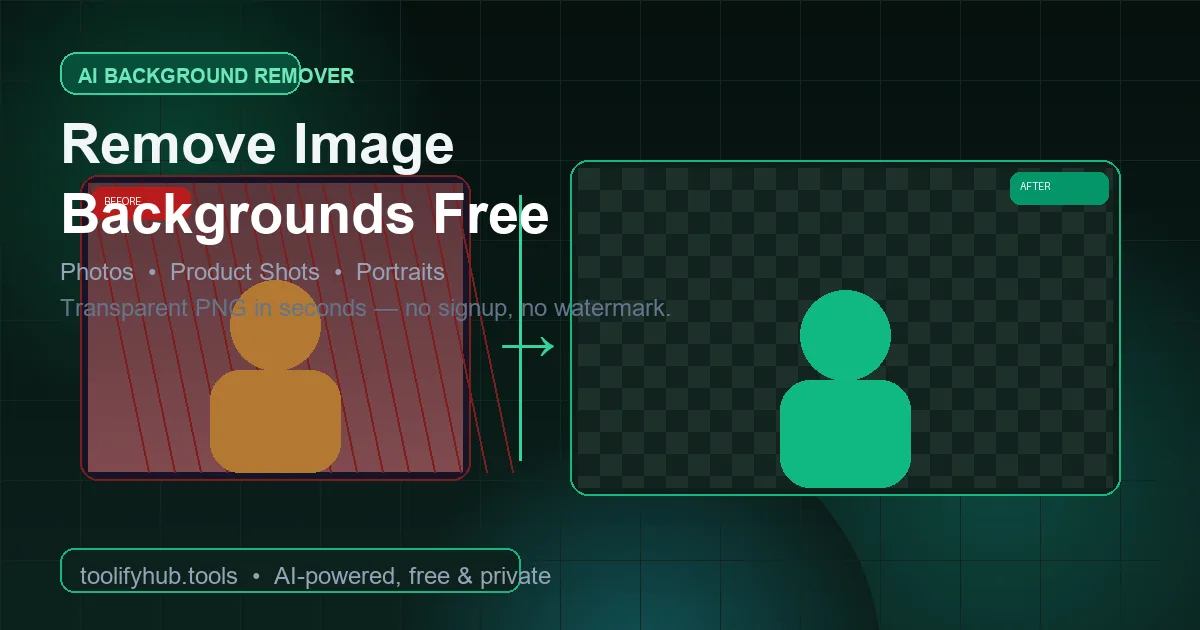
Remove backgrounds from photos instantly with our free online Background Remover. This AI-powered tool automatically detects the subject in your image and removes the background in seconds. Simply upload your photo, and our advanced machine learning algorithm handles the rest - no manual selection, no green screen, no technical skills required. The tool works with portraits, product photos, logos, and complex images with fine details like hair or fur.
Perfect for e-commerce sellers creating product listings, social media users creating profile pictures, designers working with composite images, or anyone needing clean cutouts. The AI recognizes edges, handles transparent areas, and preserves fine details like hair strands and object boundaries. Download your result as a PNG with transparent background ready for use in any design project. 100% browser-based, your images never leave your device, ensuring complete privacy.
Why Use ToolifyHub.tools?
Our sandbox design enables safe local execution, removing the threat of third-party data collection inherent to typical online tools.
🔒 100% Privacy-First Sandbox
This tool runs entirely inside your browser. No files or inputs are sent to any external server.
❌ No Sign-Up or Accounts
Enjoy instant, anonymous access to all features without sharing email or credentials.
⚡ High-Speed Local Rendering
Optimized client-side rendering ensures near-zero processing wait times.
🎁 100% Free & Unlimited Client-Side AI
Because background removal executes entirely locally inside your browser via WebAssembly neural networks, there are no artificial daily limits, subscriptions, or credit systems. Process as many images as you need with complete privacy.
How to Use the Background Remover on ToolifyHub.tools
- 1
Upload your image
Drag and drop or click to browse. Supports JPG, PNG, and WebP up to 10MB. The preview shows your original image immediately.
- 2
Wait for AI processing
Our AI model analyzes every pixel edge in your image. Most photos process in 2-5 seconds depending on complexity. Hair, fur, and translucent objects take slightly longer.
- 3
Preview the transparent result
The processed image appears with a checkerboard pattern showing transparency. Zoom in on edges to verify clean cutouts around detailed areas.
- 4
Download your transparent PNG
One click saves the image as a PNG with full transparency. Use it directly in Canva, Photoshop, Figma, or upload it to your online store.
Real-World Scenarios Where This Saves You
The E-Commerce Product Photographer
Rachel photographs jewelry on her dining table. Each piece needs a clean white background for Amazon listings. She batch-processes 40 product photos in under 10 minutes, saving $600 compared to hiring a freelance photo editor. The AI handles the reflections on metal surfaces perfectly.
The LinkedIn Profile Upgrade
David has a great headshot from a friend's wedding but the background is a parking lot. He removes the background, places himself on a clean gradient, and updates his LinkedIn profile. His profile views increase 3x in two weeks — because first impressions on LinkedIn are almost entirely visual.
The Social Media Content Creator
Aisha creates meme-style educational content for Instagram. She needs cutout images of herself in different poses to overlay on colorful backgrounds. Instead of setting up a green screen studio, she shoots quick selfies against any wall and removes backgrounds in seconds.
Common Mistakes to Avoid
How We Tested This Tool
To guarantee complete accuracy and reliability, our engineering and QA team validates the Background Remover regularly against:
- Cross-Browser Compatibility: Verified on standard releases of Google Chrome, Apple Safari, Mozilla Firefox, and Microsoft Edge.
- Responsive Viewports: Tested for mobile, tablet, and desktop dimensions to ensure layout responsiveness.
- Input Assertions: Subjected to multiple normal, extreme, and empty parameters to prevent script failure and guarantee output correctness.
Local Browser Sandbox vs. Cloud Tools
| Metric | ToolifyHub Sandbox | Typical Cloud Services |
|---|---|---|
| File Upload Risks | None (0% upload rate) | High (transmits data to remote servers) |
| Execution Cost | Free forever (No limits) | Subscription-gated or limits applied |
| Data Retention Policy | Immediate deletion on page close | Retained in cloud buckets or server logs |
| Processing Latency | Sub-second client execution | Network upload & queuing delays |